Managing Global Picklist Values
Published on June 15, 2026 QuoteX
| Customizing Picklist Value Sets |
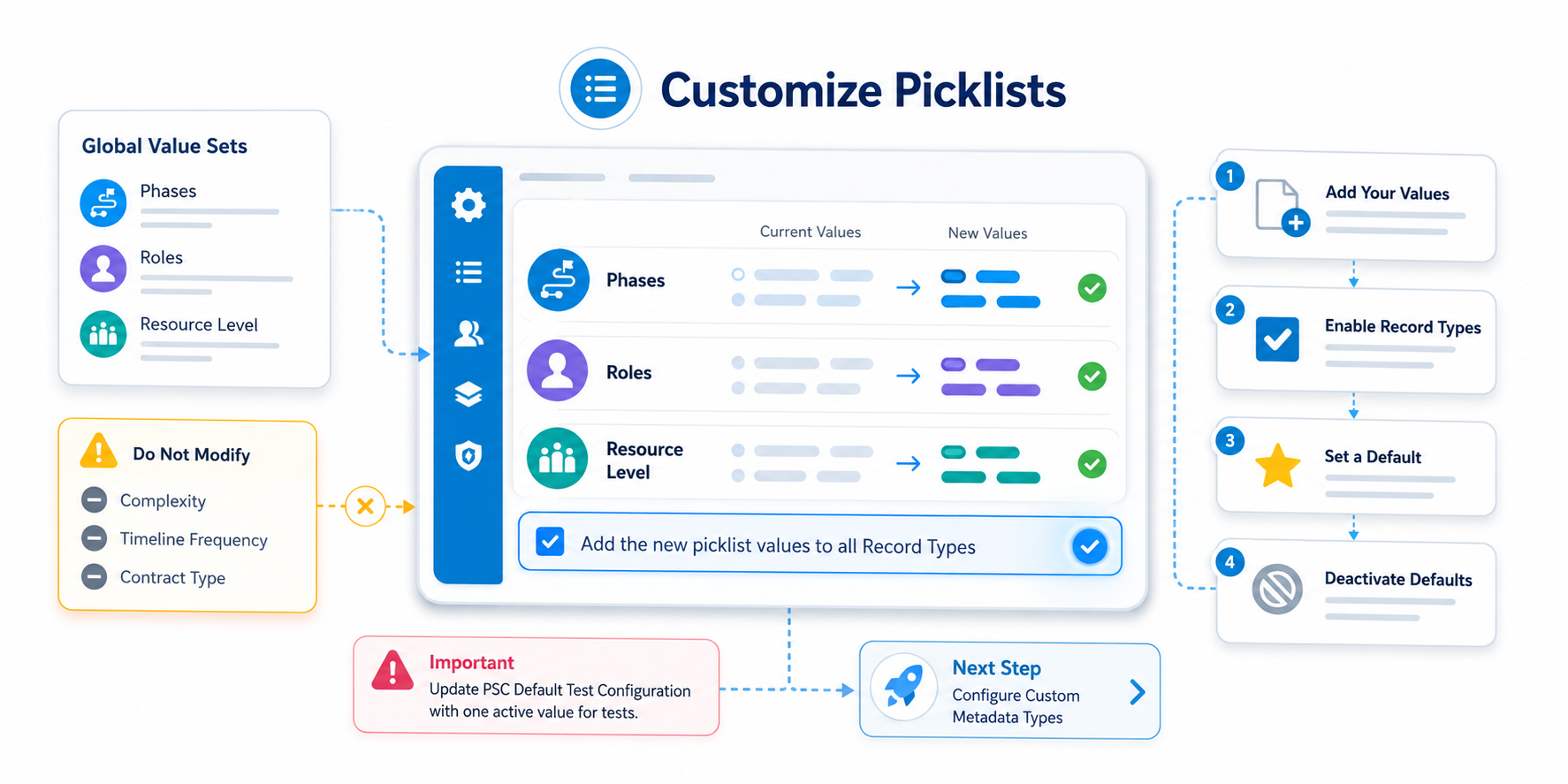
After installation, certain picklists must be tailored to match your specific business requirements. These global value sets drive key application features like Rate Cards , Timelines , and Efforts .
| ▶ High-Priority Picklists |
Modify only the following three global value sets:
| Picklist | Purpose | Suggested Customization |
| Phases | Defines project stages (e.g., Discovery, Build). | Deactivate default phases and add your own. |
| Roles | Defines job functions for team members. | Add roles specific to your organization. |
| Resource Level | Defines seniority (e.g., Junior, Senior). | Align with your internal leveling structure. |
| ⚠️ Warning Do not modify picklists labeled "Internal Only," such as Complexity, Timeline Frequency, or Contract Type |
https://www.youtube.com/watch?v=1QHWlaeifQs
| ▶ How to Update Existing Values |
For the best system performance, do not simply rename existing values. Instead, follow this "Add-then-Deactivate" process:
- Add Your Values: Click New in the Global Value Set and enter your custom values on separate lines.
- Enable Record Types: You must check the box: "Add the new picklist values to all Record Types that use this Global Value Set" .
| Note: If you miss this, the values will not appear in the application. |
Set a Default: Edit one of your new values and select Default .
| 💡 | Tip Setting a default phase (typically "Develop" or "Build") is required for the Scoping & Sizing Spreadsheet feature to work. |
Deactivate Defaults: Once your new values are active, Deactivate the generic default values provided during installation.
Whenever you add new values to any of the pick lists mentioned above, please make sure to select the option 'Add the new picklist values to all record types that use this global value set' located at the bottom of the page.
| Note: If you do not click this box, the new pick list value will not be available in the picklists in the application. |
| ⚠ | IMPORTANT To remove the default values when installing the package, we recommend adding your custom values and deactivating the existing ones . This process should be followed as a general practice for future modifications of picklist values. |
| 🚫 Important Ensure, as you add/modify the role, phase, & level values ; you update and set one active value in PSC Default Test Configuration for running the test classes. |
Next Step: Configure Custom Metadata Types
SEE MORE
Knowledge Article Number: KA-00005