General System Settings (PSC Setup)
Published on June 15, 2026 QuoteX
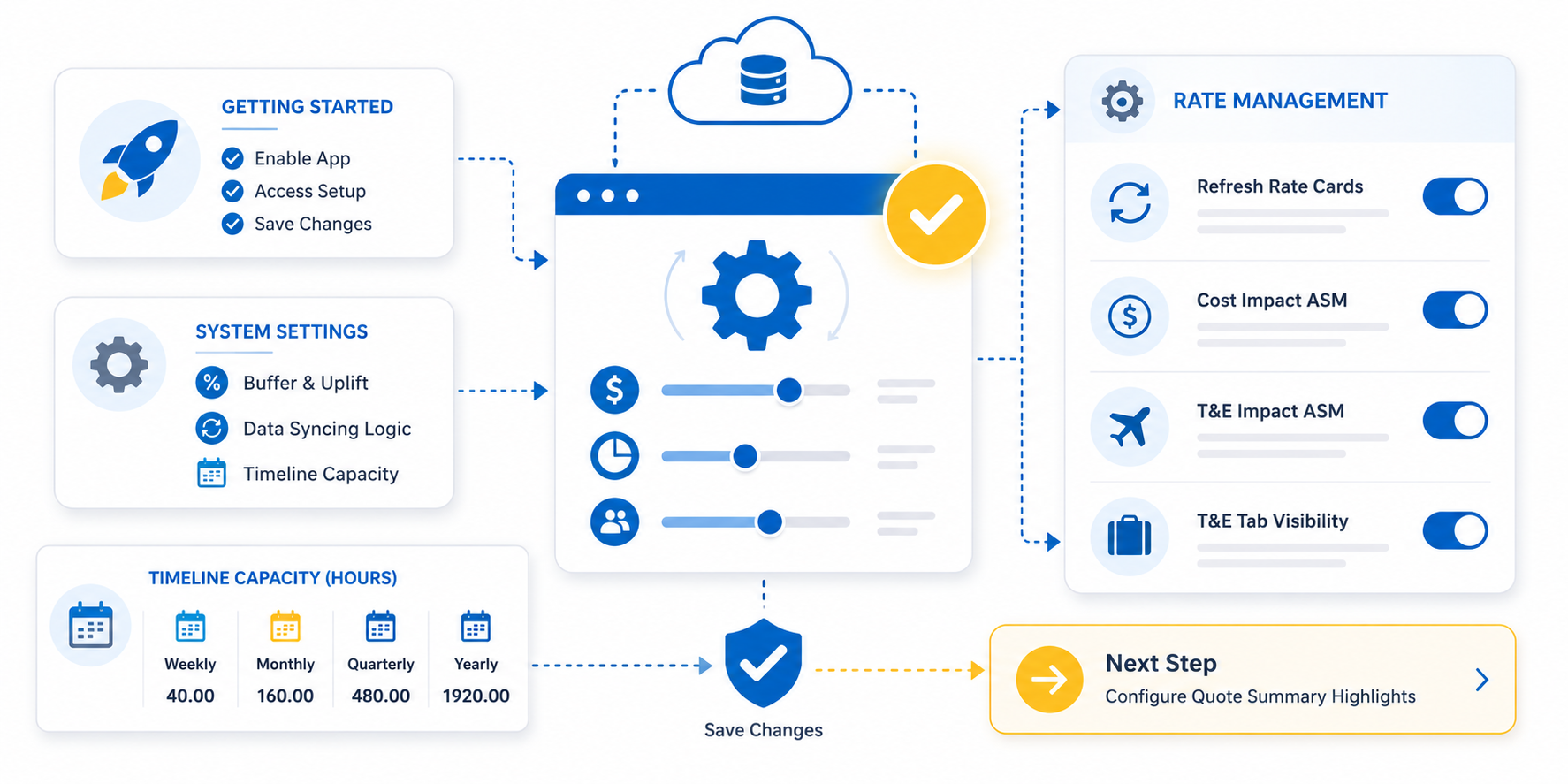
This document provides a step-by-step walkthrough for the initial configuration of the Pre Sales Cloud Admin App. Use this guide to ensure all system behaviors, timeline settings, and financial buffers are aligned with your organization's requirements.
Getting Started
To begin the setup, you must manually enable the application and configure its core settings.
- Open the App Launcher: Search for Pre Sales Cloud Admin .
- Access the Setup Tab: Click on the PSC Setup tab.
- Saving Changes: Any manual adjustments require you to click Save to apply the updates.
| ⚠ | IMPORTANT Product Key: As of QuoteX v1.85, the Product Key field is deprecated . You may leave this field blank. |
2. System Settings (Core Configuration)
These settings define how the system calculates buffers and handles data visibility.
Fixed Fee With Buffer
| What it does: Adds a specific percentage of "padding" to the service fee for deals marked as Fixed Fee . | Recommendation: Set to 20% initially. This applies exclusively to fixed-fee deals to mitigate risk. |
Fixed Fee Cost Uplift:
A percentage added to the Internal Cost of resources for Fixed Fee projects. This represents the hidden overhead of delivering a fixed-price commitment.
ASM Threshold:
The target margin percentage for As Sold Margin (ASM). This serves as the benchmark for project profitability.
Data Syncing Logic
| Sync PSR/Quote Request Status: Defines the specific Quote Request status (e.g., "In Progress,Quote Approved, Quote Review Requested") where the synchronization of summary fields initiates. | Why it matters: It is recommended to set this to a later stage in the sales cycle to prevent unnecessary background processing during early-stage drafting. |
| ✅ Status Values Comma-Separated Statuses: Use this field to list the valid Quote Request statuses that should trigger a data sync, separated by commas. |
Default Capacity Per Timeline Frequency:
| Weekly | 40.00 is suggested but some organisation bills 43.75 or 45.00 hours a week. Set accordingly |
| Monthly | 160.00 is suggested but some organisation bills differently. Set accordingly. |
| Quarterly | 480.00 is suggested but some organisation bills differently. Set accordingly. |
| Yearly | 1920.00 is suggested but some organisation bills differently. Set accordingly. |
| RATE MANAGEMENT |
| Maintaining accurate billing and cost rates is essential for long-term project accuracy. |
Refresh Rate Cards
| WHAT IT DOES Enabling this setting adds a "Refresh Rates" action button to the Manage Rate Cards screen for your organization. | WHY IT IS NEEDED Resource bill and cost rates often change periodically (e.g., every 2 years due to inflation or internal adjustments). | THE BENEFIT When global organizational rates are updated, this button allows administrators to push those new rates into "inflight" (active) quotes, ensuring that existing estimates remain financially viable and reflect current cost |
Default Cost Impact ASM:
| Active: Allows users to toggle cost impact during timeline creation. | Inactive: Locks the setting, preventing users from changing the organization's cost impact standard. |
Override Default Cost Impact ASM:
| Active (Checked): Allows users to manually toggle the "Cost Impact ASM" setting during timeline creation. | Inactive (Unchecked): Disables the user's ability to modify this setting. This locks the behavior to the organizational decision defined in the "Default Cost Impact ASM" field, ensuring consistent financial reporting. |
Default T&E Impact ASM:
| Checked: T&E costs are subtracted from the ASM calculation. | Unchecked: ASM only reflects labor/service costs. |
Override Default T&E Impact ASM:
| Active: Users can choose whether T&E impacts ASM for their specific timeline. | Inactive: Locks the behavior to the organizational default. |
Default T&E Setting
- Show T&E Tab: Toggles whether the "Travel & Expense" tab is visible to users within a timeline.
Override Default T&E Setting:
| Active: Users can choose whether T&E tab should be shown for granular recording of T&E | Inactive: Disables the selection during timeline creation, locking the behavior to the organizational standard defined above. |
Next Step: Configure Quote Summary Highlights
Knowledge Article Number: KA-00007