Bulk Document Generation
Published on February 10, 2026 DRTE
Mass Merge / Bulk Document Generation
Mass Merge lets users generate documents for multiple selected records at once from a Salesforce List View. Document creation is queued as a background process, saving significant time compared with generating documents one record at a time.
In this guide:
1. Understanding the Bulk Generation URL
2. Configuration Steps (create the button, add it to the layout)
3. End-User Workflow
4. Troubleshooting and Support
Understanding the Bulk Generation URL
The custom button uses a specific URL structure to invoke the bulk generation flow. The parameters define which template to use and how to name the output files.
| URL Parameter Key | Description | Example Value |
| SFDCDocumentTemplateId | The 18-digit SFDC Record ID of the DRTE Document Template to be used for generation. | a01XXXXXXXXXXXXXXX |
| SFDCObjectAPIName | The API Name of the Salesforce Object (standard or custom) where the button is placed. | Invoice__c or Account |
| SFDCDocumentFileNamePrefix | A prefix used to name the generated document files. | Bulk_Invoice_ |
Generic URL Structure
/flow/drte_ext/GenerateMassDocument?SFDCDocumentTemplateId=[DocumentTemplateId]&SFDCObjectAPIName=[SFDCOBJectAPiName]&SFDCDocumentFileNamePrefix=[NameOfFileToSave]
Important Note: The URL key names (e.g., SFDCDocumentTemplateId) must be used exactly as shown for the feature to function correctly.
Configuration Steps
Step 1: Create the Custom List View Button
- Navigate to Setup -> Object Manager.
- Search for and select the Target Object (e.g., a custom Invoice__c object) on which you want to enable bulk generation.
Figure 1: Select the target object in Object Manager.
- Go to Buttons, Links, and Actions and click New Button or Link.
Figure 2: Buttons, Links, and Actions - New Button or Link.
- Configure the button details:
- Label: Provide a user-friendly label (e.g., Generate Documents or Bulk Invoice Generation).
- Name: Enter the API name (e.g., Generate_Documents).
- Display Type: Select List Button.
- Ensure "Display Checkboxes (for Multi-Record Selection)" is checked.
- Content Source: Select URL.
- Content: Paste the generic URL structure and replace the bracketed values with your specific configuration details (e.g., inserting your template ID).
Figure 3: List button configuration.
Tip: The Document Template Id is the SFDC record Id of your rich text button/document template related to the selected object. In this example, we are using the Document Template Id of the 'Invoice Document' template.
Figure 4: Locating the Document Template record Id.
Step 2: Add the Button to the List View Layout
- While still in the Object Manager for the Target Object, navigate to List View Button Layout.
Figure 5: List View Button Layout.
- Click Edit next to the List View layout you wish to modify.
- Move the newly created custom button (e.g., Generate Documents) from Available Buttons to Selected Buttons.
Figure 6: Move the button to Selected Buttons.
- Click Save.
Success: The Mass Merge feature is now configured and ready for end-user deployment.
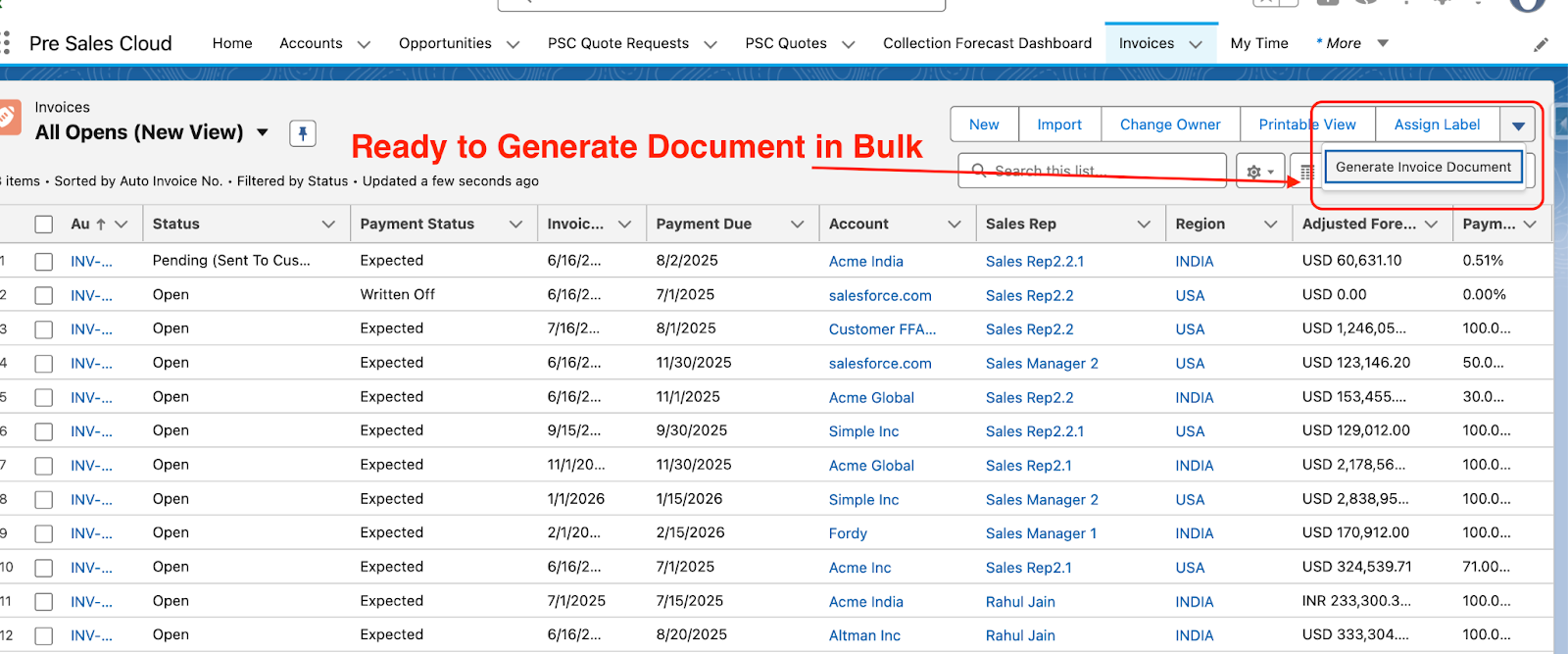
Figure 7: Button available on the list view.End-User Workflow
The bulk generation process is initiated by the end user directly from a standard or custom List View.
- Prepare the List View: Navigate to the List View of the target object (e.g., Invoices). Apply filters so the view displays only the records for which documents need to be generated.
- Select Records: Select the checkboxes next to the desired records.
Figure 8: Select records in the list view.
- Initiate Merge: Click the custom button (e.g., "Generate Documents" or "Bulk Invoice Generation") located above the list view.
Figure 9: Click the bulk generation button.
- Confirm and Proceed: A confirmation screen shows the number of selected records. Click Proceed.
Figure 10: Confirmation screen.
- Monitor Processing: You are immediately redirected to a Batch Record screen, which serves as the central log for the background process.
Figure 11: Batch Record screen.
- The batch status typically updates quickly (e.g., from Queued to Processing).
- The screen shows the status of individual records as the Document Content is built and PDF generation is initiated.
Figure 12: Batch processing status.
Figure 13: Record-level status.
- Completion: Once the batch status shows Completed, the documents have been generated.
Figure 14: Completed batch.
Access Documents: All generated PDF documents are automatically saved to the Files related list of their respective records (e.g., the generated Invoice PDF is saved to the related Invoice record).
Troubleshooting and Support
Button does nothing or shows an error?
- Confirm the URL key names match exactly (SFDCDocumentTemplateId, SFDCObjectAPIName, SFDCDocumentFileNamePrefix).
- Verify the template Id is the correct 18-digit record Id.
- Verify the object API name matches the object where the button is placed.
- Confirm the button is in the Selected Buttons list of the List View Button Layout.
Need help? If the issue persists, contact support with the Batch Record details and the button URL you configured.
Knowledge Article Number: KA-00112