Journey Map Builder: Permissions Guide
Published on November 13, 2026
User Journey Map Builder
Journey Map Builder: Permissions Guide
Audience: Salesforce administrators who install Journey Map Builder
Time needed: about 10 minutes |
1. What the Package Uses
| Object | API Name | Used For |
| Journey Map | pscjmb__Journey_Map__c | The map itself: name, persona, scenario/objective |
| Journey Map Phase | pscjmb__Journey_Map_Phase__c | The steps of the journey: name, order, emotion, user actions, touchpoints, pain points, possible solutions |
Journey Map Phase is a child of Journey Map through a Master-Detail relationship.
- Phases inherit sharing from their map, and a user who can't see a map can't see its phases.
- Phases can't exist without a map.
- Deleting a map deletes all of its phases.
2. Included Permission Set
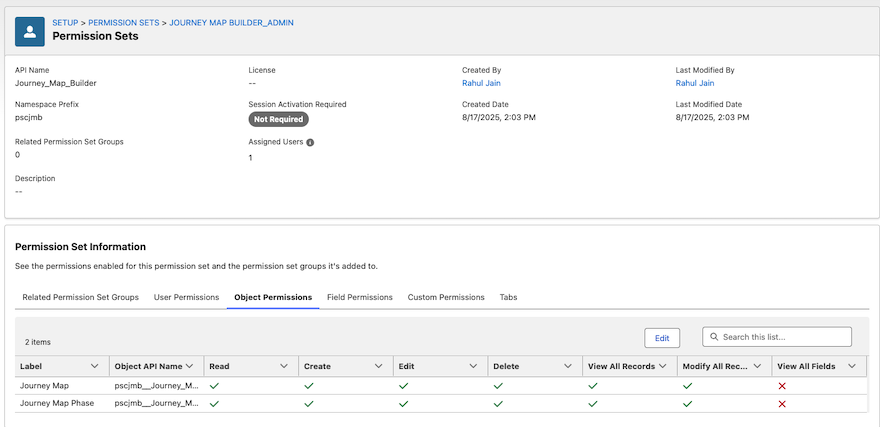
| Permission Set | Journey Map | Journey Map Phase |
| Journey Map Builder_Admin | Create, Read, Edit, Delete | Create, Read, Edit, Delete |
| Assign this to anyone who builds and maintains journey maps. |
3. What Each Action Needs
| User Action | Journey Map | Journey Map Phase |
| View a map in the Table or Storyboard | Read | Read |
| Use "Edit journey" (any editing) | Read | Read, plus Create / Edit / Delete as needed |
| Edit map details (name, persona, scenario) | Edit | Read |
| Add / duplicate a phase | Read | Create |
| Edit a phase, reorder phases | Read | Edit |
| Delete a phase | Read | Delete |
| Create a new journey map | Create | Read |
| Delete a whole map | Delete | Delete (phases are removed with it) |
The Storyboard shows the "Edit journey" button only to users who can create or edit. Each action inside it is also gated by the user's access.
- Without Create, there is no "Add phase" or "Duplicate".
- Without Delete, there is no "Delete" button.
- Without Edit, the user can't save changes or reorder phases.
4. Assign the Included Permission Set
- Go to Setup > Permission Sets and open Journey Map Builder_Admin.
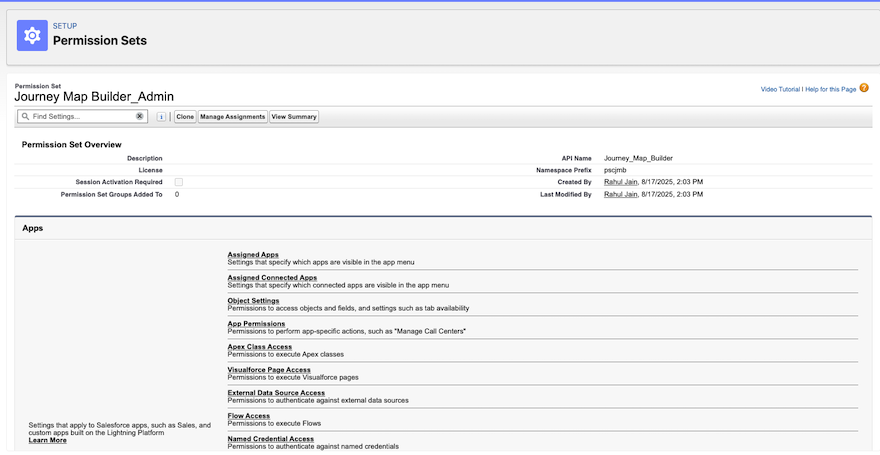
- Click Manage Assignments > Add Assignments.
- Select the users and click Assign, then Done.
5. Recommended: Create a Read-Only Permission Set
| Many people only need to view maps. A separate set is cleaner than giving everyone full access. |
- Setup > Permission Sets > New. Label it "Journey Map Builder_Viewer".
- Open Object Settings and, for Journey Maps and Journey Map Phases, check Read only.
- Under Field Permissions, grant Read on every field.
- Save and assign it to viewers.
| Optional: an editor set. Clone the Viewer set and add Create, Edit and Delete on both objects, with Read and Edit on all fields. Use this when you want editors without the full admin set. |
6. Check Field Access
Rich-text fields only show data if the user has field access. Confirm that each profile or permission set has Read, and Edit for editors, on:
- Journey Map Phase: Name, Order, Emotion, User Actions, Touchpoints, Pain Points, Possible Solutions
- Journey Map: Name, Persona, Scenario/Objective
| A missing field shows up as an empty section, a missing label, or a save error. |
7. Sharing (Who Can See Which Maps)
- Check the Organization-Wide Default for Journey Map. If it is Private, users only see maps they own or that are shared with them.
- Phases follow the map. Record access on a phase comes from its map.
- To widen access, use sharing rules, roles, or manual sharing on the map.
8. Test Checklist
Log in as a test user, or use Login As, for each permission set:
- Viewer can open a map and see every phase, but sees no "Edit journey" button.
- Editor can edit a phase and click Save phase without errors.
- Editor can add, reorder and duplicate phases.
- Deleting a phase works only for users with Delete.
- Editing Persona in "Edit map details" saves correctly. Persona is required.
9. Troubleshooting
| Symptom | Likely Cause | Fix |
| Map opens but no phases show | No Read on Journey Map Phase, or phase fields not readable | Grant object Read and field Read |
| "Edit journey" button missing | User has no Create or Edit on either object | Assign the editor or admin set |
| "Add phase" missing | No Create on Journey Map Phase | Grant Create |
| Save fails with "insufficient access" | Missing Edit on the object or a field | Grant Edit and field Edit |
| Can't see a map others can | Sharing / org-wide default | Review sharing settings |
| A section looks empty for one user only | Field-level access | Check field permissions |
Knowledge Article Number: KA-00502