Automating Staffing Blended Rate Logic
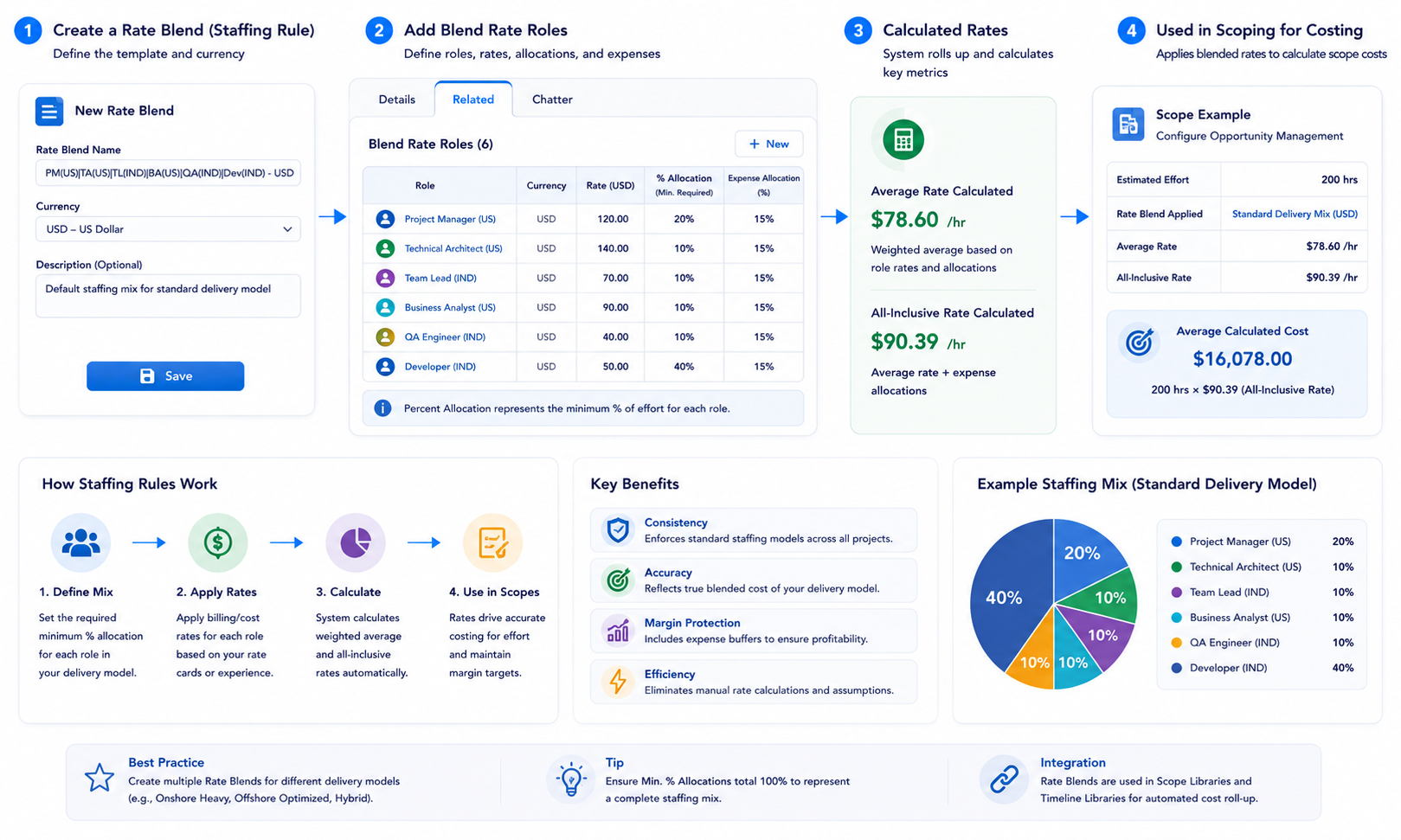
PSC Staffing Rules, also known as Rate Blends, allow Subject Matter Experts (SMEs) to establish staffing guidelines. These templates calculate "Average Rates" and "All-Inclusive Rates" based on a blend of different roles (e.g., a mix of Onshore and Offshore resources) to derive a blended cost for project delivery.
Utilize Staffing Rules templates to set guidelines for staffing, incorporating minimum percentage requirements for roles, calculated average rates, and all-inclusive rates.
Overview
Staffing Rules utilize predefined assumptions about role distributions to systematically generate cost guidelines. For example, you might create a rule that assumes a project is staffed by 20% Project Management, 40% Onshore Developers, and 40% Offshore Developers to see the blended hourly rate.
Staffing Rules enable the establishment of guidelines for staffing by incorporating minimum percentage prerequisites for roles, calculating average rates, and considering all-inclusive rates. These templates utilize predefined assumptions about the roles in question to systematically generate staffing rules.
Add a new Rate Blend
- Click ‘New’
- Include the 'Rate Blend Name,' ensuring clarity and easy identification, especially when detailed information is incorporated, such as 'PM(US)|TA(US)|TL(IND)|BA(US)|QA (IND)|Dev(IND) - USD'.
- Choose the 'Currency.' The selection of currency is crucial as it permits users to apply rules exclusively within the same currency.
- Save.
When you define Blend Rate Roles records, the calculated average rate and all-inclusive rate aggregate or roll up accordingly.
Add Blend Rate Roles
- Go to ‘Related’ tab on the Rate Blend detail page.
- Click ‘New’.
- Select ‘Role.
- Choose the 'Currency,' ensuring that it matches the currency value of the parent record. This alignment is essential for consistency and accuracy in the currency setting.
- Include the 'Rate.' Manually calculate the presumed blended rate for the chosen 'Role' from your organization's rate cards, considering various regions and the selected currency. Alternatively, use an informed assumption based on experience.
- Include 'Percent Allocation.' Minimum Percent Allocation aids in delineating the cost of the chosen role for the specified percentage of time in the project. For example, assume a project lasts for 1 hour, and you only require a 'Project Manager' for 30 minutes. If the hourly cost for the project manager is $20, the cost for the project manager in the project would be $10. This field helps in accurately determining the cost based on the allocated percentage of time for each role.
- Include 'Expense Allocation.' This feature aids in determining the all-inclusive cost of the selected role based on the allocated percentage. The defined expense allocation percentage will sum up the calculated rate with the associated expenses, providing a comprehensive cost for the selected role.
- Save
Continue adding additional roles. Ultimately, the 'Average Rate Calculated' and 'All Inclusive Rate Calculated' will be consolidated on the Rate Blend record. These calculated rates will be utilized in Scopes to derive the 'Average Calculated Cost' for delivering the defined scopes.
Understanding Calculated Rates
The system automatically consolidates the data into two primary metrics on the Rate Blend record:
- Average Rate Calculated: The weighted average hourly rate based on the billing/cost rates of the selected roles and their staffing percentages.
- All-Inclusive Rate Calculated: The average rate plus the defined expense allocations.
Practical Application
Once configured, these Staffing Rules are utilized in the Scopes section of the application. They allow the system to derive the Average Calculated Cost for delivering a defined scope of work, ensuring that estimates account for your organization's standard delivery model (e.g., a specific Onshore/Offshore ratio).