Configuring Quote Summary Highlights
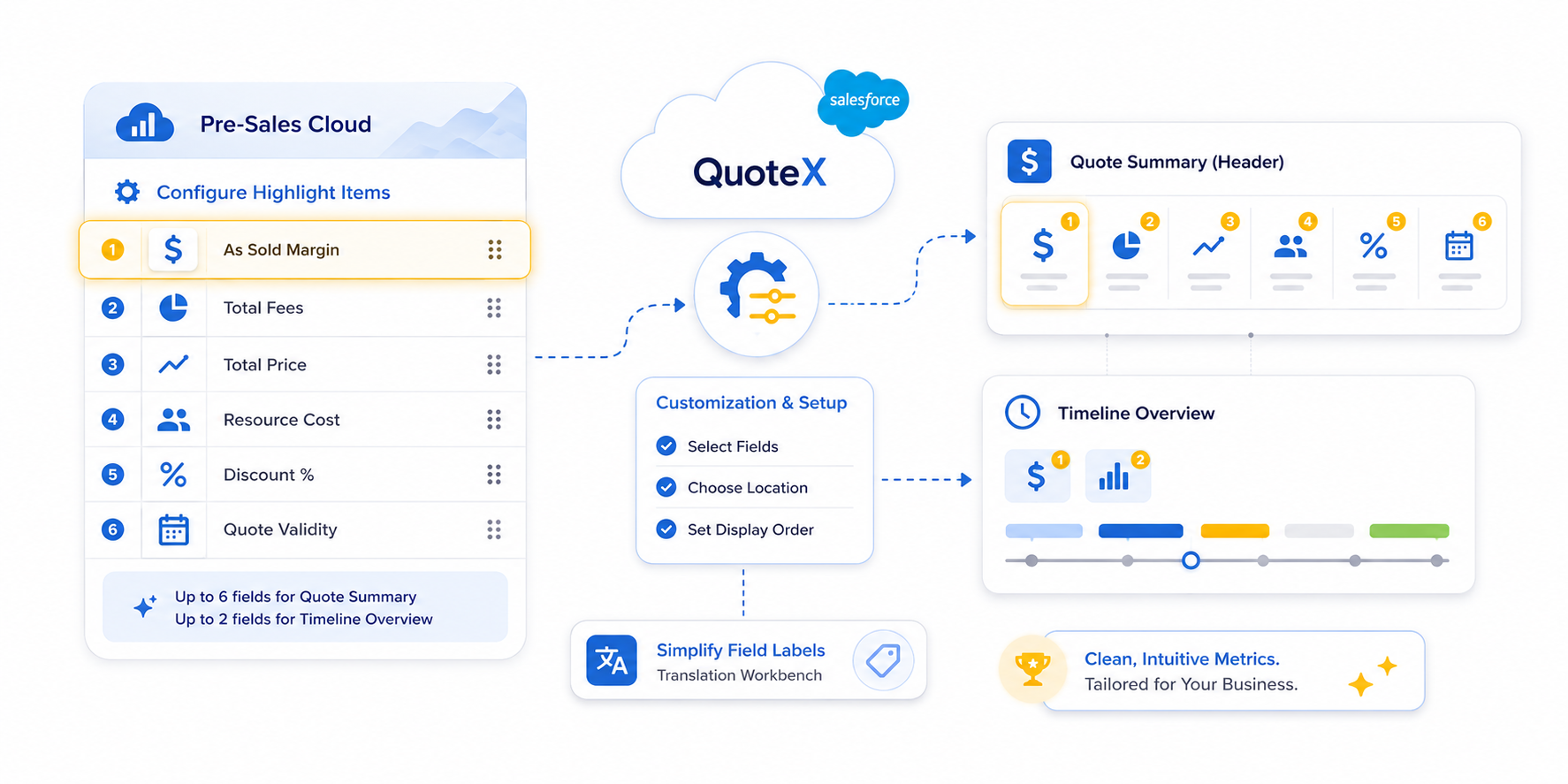
This guide explains how to use PSC Highlight Items to personalize the metrics displayed in the Quote Header (Highlight Panel) and the Timeline Overview.
1. Overview
PSC Highlight Items allow administrators to choose which specific financial and resource metrics are visible to users.
- Quote Summary Section: Maximum of 6 fields .
- Timeline Overview Section: Maximum of 2 fields .
Note: This is an optional step. If you do not configure these, the system will use default summary fields
2. Configuring Highlight Items
To manage these fields, navigate to the PSC Highlight Items tab within the Pre Sales Cloud Admin App.
Key Fields for Setup:
- Reference Object: Select the object the data is pulling from (typically Quote ).
- Reference Field API Name: Enter the exact API name of the field you wish to display (e.g.,
psce__As_Sold_Margin_Summary__c). - Display Location: Choose where this field should appear:
- Quote Summary: Appears in the top header panel of the Quote.
- Timeline Overview: Appears above the interactive timeline view.
- Display Order: Assign a numerical value (1–6) to determine the left-to-right sequence of the fields.
Renaming Field Labels (Translation Workbench)
If the default API field labels (like "As Sold Margin Summary") are too long or technical, you can rename them for the end-user.
Steps to Rename Labels:
- Go to Salesforce Setup (the cogwheel).
- Search for Translation Workbench in the Quick Find box.
- Select Override .
- Apply the following filter criteria:
- Package: PSCE
- Language: English
- Setup Component: Custom Field
- Object: Quote
- Locate the field you want to edit and enter your preferred name in the Field Label Override column.
- Save and refresh your PSC Quote page to see the updated label.
Next Step: Manage Regions