Configuring User Access & Permissions
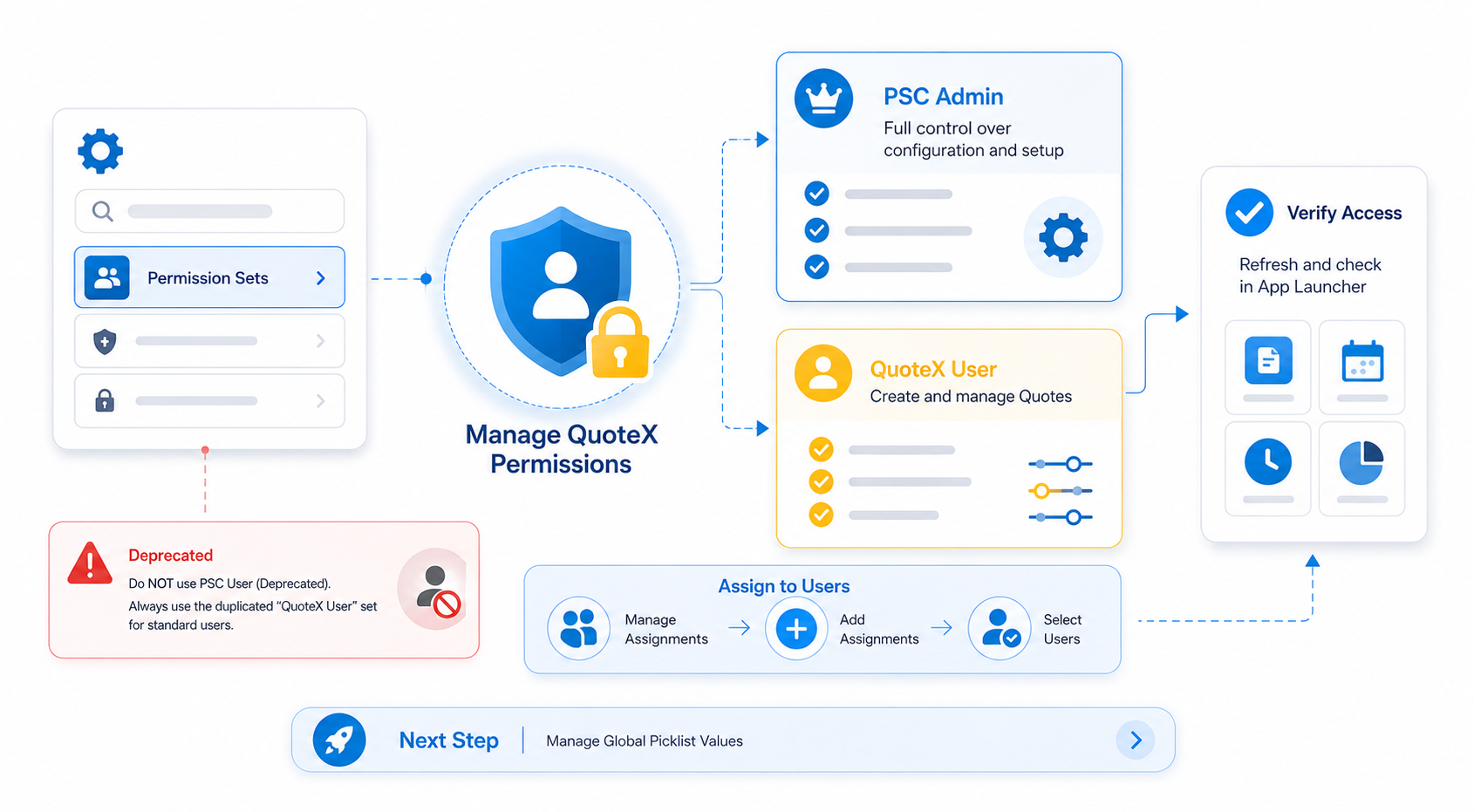
Managing QuoteX Permissions
The QuoteX package includes pre-built permission sets to help you manage user access efficiently. Follow the guide below to set up your team.
| FOR ADMINISTRATORS (PSC ADMIN) |
| Assign the PSC Admin permission set to anyone managing the QuoteX system, including your Salesforce System Administrators. |
Who it’s for: Users who need full control over configuration and setup.
| STANDARD USERS |
| For your regular team members, you will need to create a custom version of the PSC Admin permissions: Step 1: Locate the PSC Admin permission set and Duplicate it. Step 2: Label this new set as QuoteX User. Step 3: Review and modify the permissions within this new set to fit your specific user needs before assigning it to your team. |
Who it’s for: Users who need control on create and managing Quotes.
| ⚠ | IMPORTANT : Deprecated Settings Do NOT use the permission set labeled PSC User (Deprecated) . Always use the duplicated "QuoteX User" set mentioned above for your standard users. |
| ▶ Final Step: Verify Access |
Once permissions are assigned, refresh your browser page. Use the App Launcher to verify that all QuoteX apps are visible and accessible to the assigned users
Next Step : Manage Global Picklist Values
SEE MORE