Designing Resourcing Plan Template
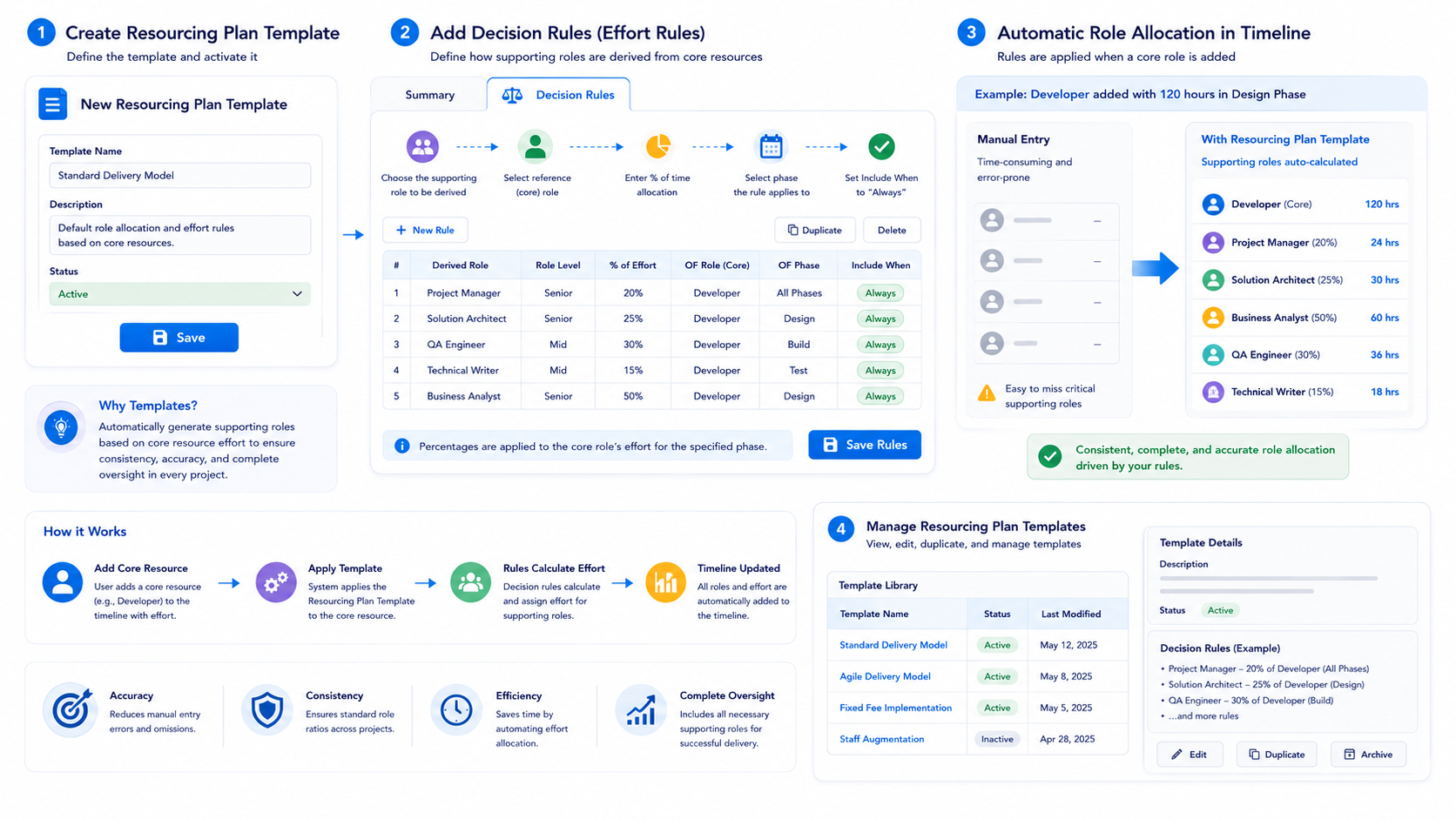
PSC Resourcing Plan Templates are used to automate role assignments and effort calculations within a project timeline. By using these templates, Subject Matter Experts (SMEs) can ensure that whenever a "Core Resource" is added to a project, secondary roles—such as Project Management, QA, or Technical Oversight—are automatically scaled and allocated based on predefined logic.
Automate Role Assignments and Boost Accuracy with Resourcing Plan Templates, effortlessly streamlining Scope Details, Timelines, and role allocations in various project scenarios.
Overview
Manually inputting effort for every role in a complex project is time-consuming and prone to error. Resourcing Plan Templates streamline this by using the hours specified for a core resource to generate required secondary roles. This ensures the precision of role assignments across various project scenarios.
Create a Resourcing Plan Template
Additionally, you have the flexibility to effortlessly create, modify, and duplicate multiple Resourcing Plan Templates to cater to various project scenarios. This streamlined approach enhances accuracy and flexibility in managing resource allocations for different projects.
- To create a new template, click ‘+ New Resourcing Plan Template’ from the Resourcing Plan Templates tab drop down.
- Give the Template a Name, Description, and mark ‘Active’ or ‘Inactive.’ Only Active templates will be available to apply to timelines.
- Click ‘Save.’
Adding Effort Rules to a Resourcing Plan Template
After adding the new Resourcing Plan Template , you will arrive on the summary details for the template.
- Click the ‘Decision Rules’ tab to add rules to the template.
- Click ‘New’ to begin adding derived effort rules to the template.
- This is where you will define the rules for effort on the template. Start by adding the role name.
- As you define the rule, select Names, Roles, and Level data in each field from your predefined values sets.
- Specify the desired percentage of time allocation relative to the "core resource." For instance, if you intend for the effort of a Senior Business Analyst to constitute 50% of the Developer's effort during the Design Phase, input '50' in the percentage field. Additionally, designate the 'Developer' as the reference role in the 'OF ROLE' field and specify the relevant phase as 'Design' in the 'OF PHASE' field. This configuration establishes a rule where the Senior Business Analyst's effort dynamically adjusts to 50% of the Developer's effort in the designated phase, leveraging the defined "core resource."
- Select ‘Always’ from the ‘Include When’ drop down.
- Click ‘Add’ to continue adding roles.
- When all necessary effort details have been added to the template, click ‘Save.’
Duplicate the preceding step to establish derived effort rules for additional supporting roles connected to the core roles and across various project phases.
- Repeat the steps for multiple phases, roles etc
Managing your Resourcing Plan Templates
- After you have added resourcing plan templates to the library, click the ‘Resourcing Plan Templates’ tab to see your template list.
- Click on the Resourcing Plan Template Name that you wish to view or edit. You will see the summary details for the template group.
- Click the ‘Decision Rules’ tab to view and edit the template details.