Managing Regions
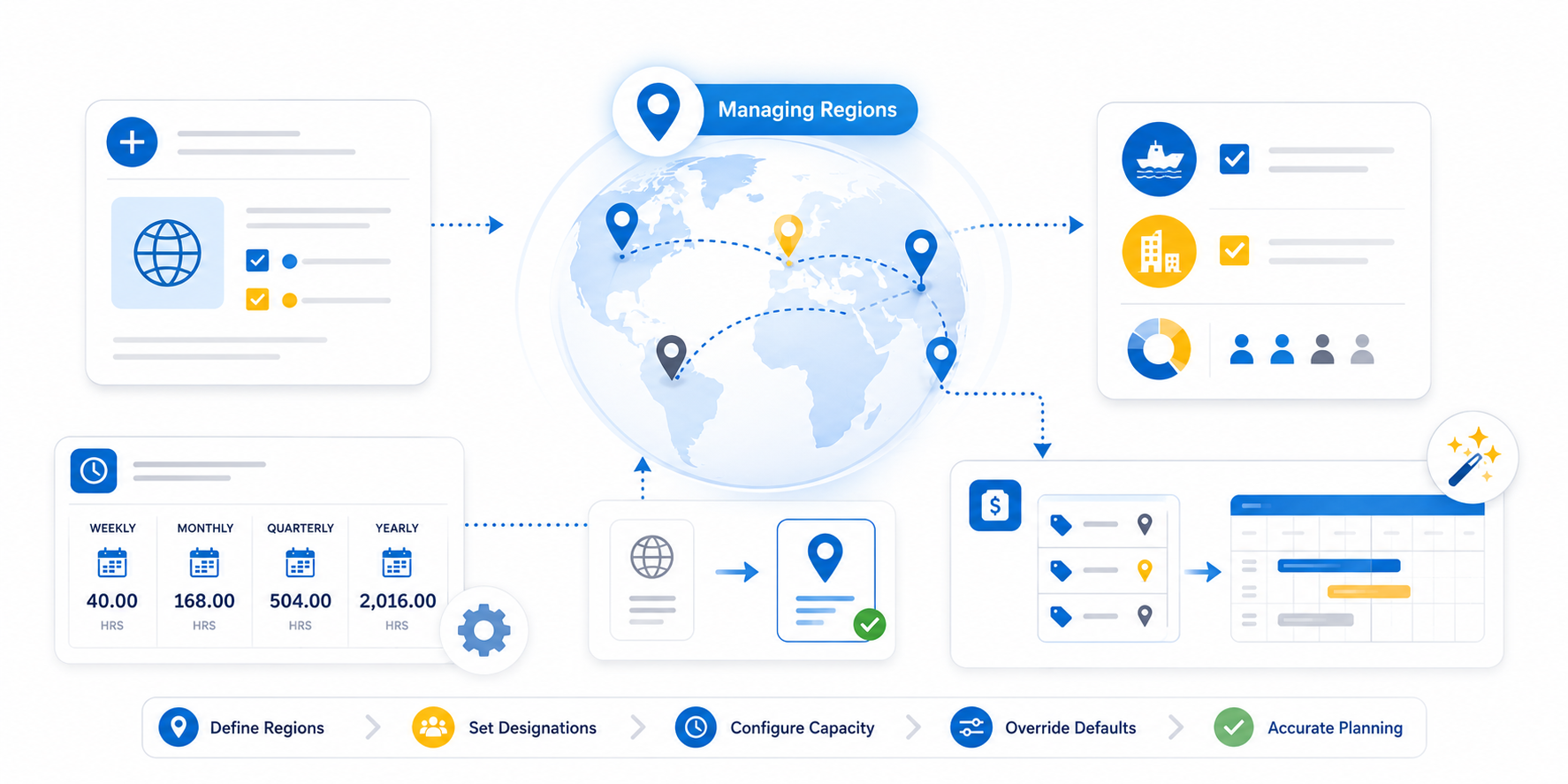
This guide details how to set up and manage PSC Regions . Regions are essential for categorizing rate cards and defining specific work capacities for resources based on their location or group.
To set up regions in the PSC Admin application, follow these steps:
- Go to the PSC Regions tab and select ‘+ New PSC Region’ from the dropdown menu.
- Give the region a name that aligns with your business, such as a geographical location or specific country.
- If you want to use parent regions, set them up first and select the appropriate parent region for the current region.
- Check the box next to 'Offshore' or 'Nearshore' to designate the region's location.
- Provide a brief description of the region.
- Enter the 'Default Capacity per Time Frequency' for Weekly, Monthly, Quarterly, and Yearly time frequencies. This setting allows the autofill feature to override org level settings and use allocation hours defined on the resource region.
- Click 'Save.'
Regional Designations
You can categorize regions to better track delivery models and resource types:
- Is Offshore?: Check this box if the region represents an offshore delivery center.
- Is Nearshore?: Check this box for regions designated as nearshore locations.
Why this matters: These designations allow the system to calculate and display "Offshore %" metrics in your Quote Highlights, giving visibility into the delivery mix.
Regional Capacity Settings
Every region has its own standard for "full-time" hours. Configuring these ensures the "Autofill" feature accurately calculates resource availability.
Default Capacity Per Timeline Frequency
Input the standard working hours for a single resource in this region across different timeframes:
- Weekly Capacity: (e.g., 40.00 hours for USA, 43.75 hours for India).
- Monthly Capacity: (e.g., 168.00 hours).
- Quarterly Capacity: (e.g., 504.00 hours).
- Yearly Capacity: (e.g., 2,016.00 hours).
Overriding Global Settings
By defining these capacities at the regional level, the system can override organization-wide defaults. When a resource is assigned to a specific region, the PSC Timeline will use these regional allocation hours instead of the global PSC Setup values. This is critical for global teams where standard work weeks vary by country.
Note that PSC Regions become categories for your rate cards and you can filter your rate card search by region. Also, in the Timeline, the autofill feature will give preference to the hours defined in the region, otherwise it will use existing org settings. This setting will also impact quotes in the template library.
Next Step: Manage Practices