Managing SOW & Document Templates
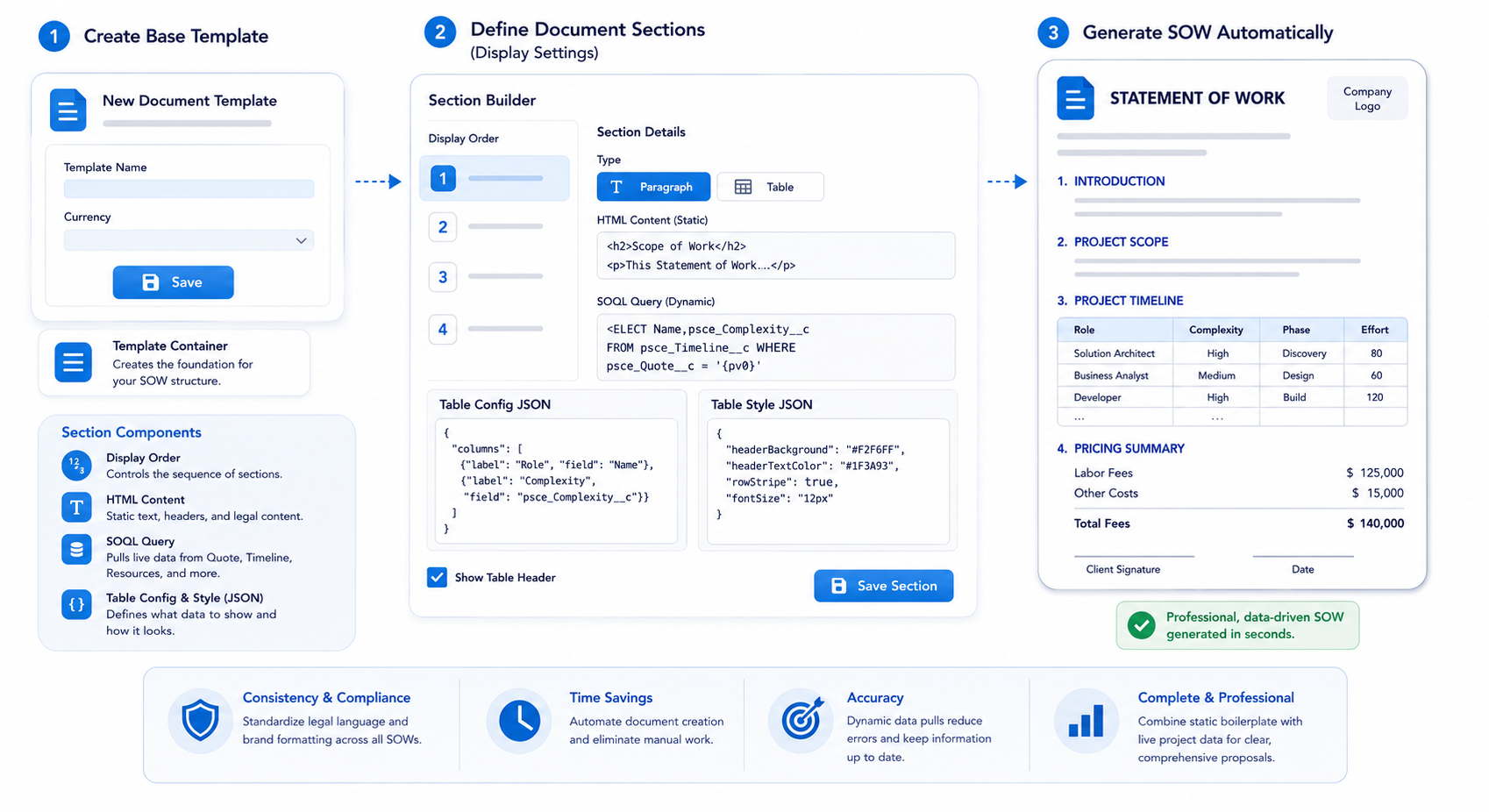
PSC Document Templates enable administrators to establish predefined formats and structures for generating Statements of Work (SOW). By using templates, your organization ensures consistency in legal language, project descriptions, and financial summaries across all customer engagements.
| ⚠ | IMPORTANT Document templates enable you to specify predefined formats for generating SOW documents . |
Creating a Base Template
The first step is to create the container for your document sections.
- Navigate to the PSC Document Templates tab in the Pre Sales Cloud Admin App.
- Click New .
- Template Name: Assign a unique name (e.g., "General - SOW Template (USD)").
- Currency: Specify the currency for this template.
- Save: This creates the header record for your document structure.
Defining Template Sections (The Display Settings)
Once the template record is created, you must define the individual sections that make up the SOW. This is done via the PSC Document Section related list.
Each section typically consists of:
- Display Order: A numerical sequence (e.g., 1, 2, 3) determining where the section appears in the document.
- HTML Content: Static text, headers, and legal boilerplate.
- SOQL Query: Dynamic queries used to pull specific data from the Quote, Timeline, or Resources into the document (e.g.,
SELECT Name, psce_Complexity__c FROM...)
The configuration sections associated with the Document Template record are dynamically constructed at runtime.
Follow these steps to create document sections for a Document Template record, or alternatively, you can download a sample data CSV for document sections records and use the Salesforce native import wizard for PSC document sections records for the created Document Template record (e.g., General - SOW Template USD):
STEPS
- Go to the Related tab on the detail page of the Document Template record (e.g., General - SOW Template USD).
- Click on the ‘ New ’ button to initiate the creation of a new document section.
- Select the ‘ Type ’ for the document section, choosing between ' Paragraph ' or ' Table '
- Assign a unique ‘ Display Order ’ for the section, ensuring a chronological order for proper display.
- If it's a static paragraph section, add the ‘ HTML Content’ for that section.
- For dynamic data tables generated through a defined SOQL Query , check the ‘ Show Table Header ’ box.
- Include the SOQL Query for the section, using the ‘{pv0}’ and ‘{pv1}’ merge fields to dynamically merge the Quote Id in the SOQL query at runtime.
- Add the ‘Table Config JSON’ in JSON format to specify what to display in the dynamic data table.
- Include the ‘Table Style JSON’ in JSON format to specify how to display the dynamic data table.
- Click on the ‘ Save’ button to save the document section.
- Repeat steps 2-10 to add multiple document sections in the chronology of the order for display in the SOW/Document.
These steps guide you through the manual creation of document sections. If you prefer to use the Salesforce native import wizard, download the sample data CSV for document sections records and follow the appropriate steps in the Salesforce platform for bulk import.