Managing the Standard Scope Library
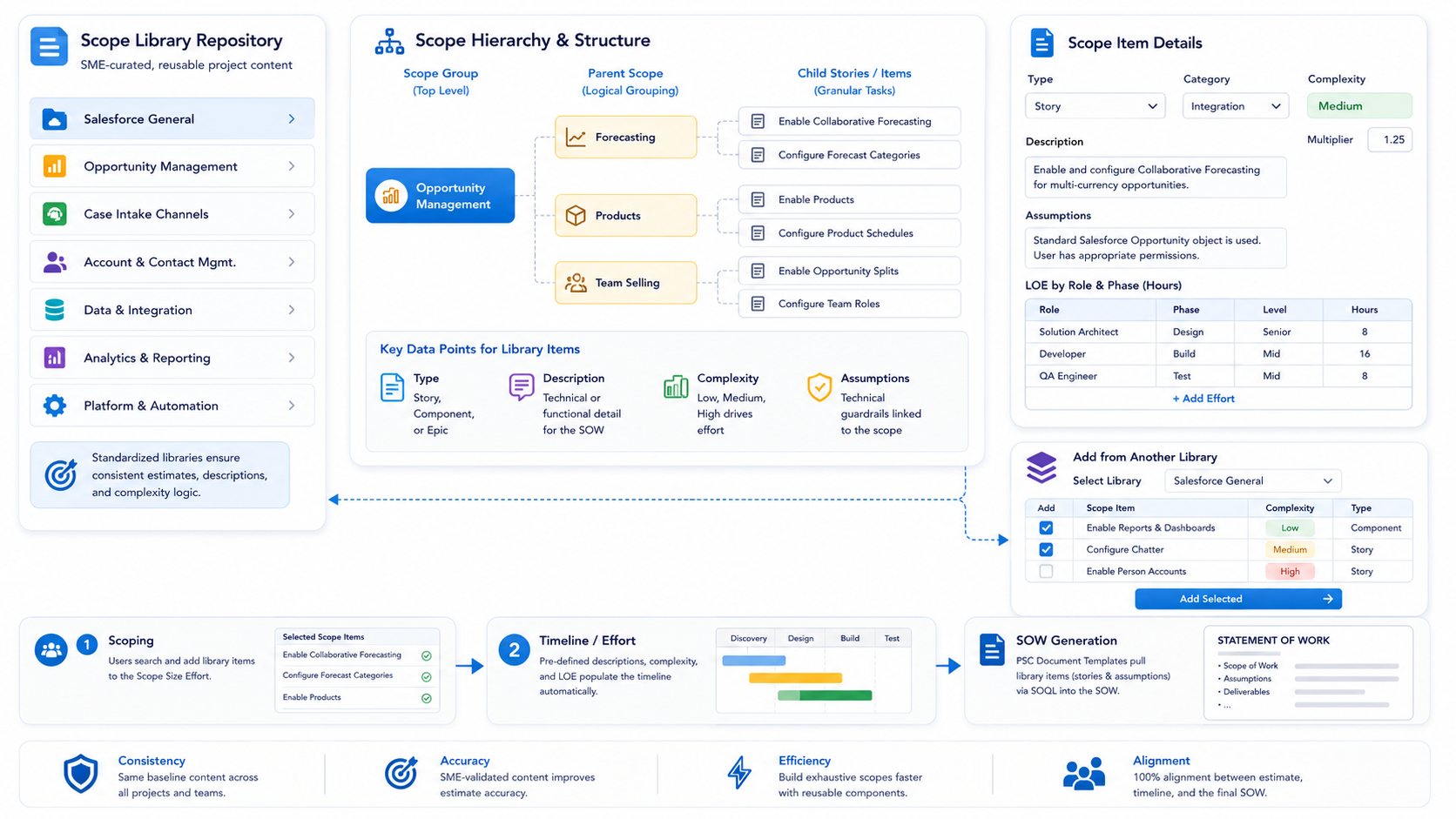
PSC Scope Libraries serve as the central repository for standardized project delivery content. Managed primarily within the Pre Sales Cloud SME App, these libraries allow Subject Matter Experts (SMEs) to define repeatable scope items, user stories, and technical assumptions that can be pulled into any quote scoping.
Overview of Scope Libraries
A Scope Library acts as a "menu" of services and technical components. By using standardized libraries, organizations ensure that every architect is estimating projects using the same baseline effort, descriptions, and complexity logic.
Managing Libraries in the SME App
To build or edit your organization's scope content, navigate to the Pre Sales Cloud SME application and select the PSC Scope Libraries tab.
Common Library Examples:
- Salesforce General: Basic platform setup and configuration.
- Opportunity Management: Standardized stories for products, forecasting, and team selling.
- Case Intake Channels: Specific scope for Web-to-Case, Live Agent, and Social Media integrations.
- Account & Contact Management: Standard data structures and automation.
Scope Hierarchy & Structure
Each library is organized into a clear hierarchy to help scoping teams navigate complex offerings:
- Scope Group: The top-level category (e.g., "Opportunity Management").
- Parent Scope: A logical grouping of related tasks (e.g., "Forecasting").
- Child Stories/Items: The individual granular tasks or user stories (e.g., "Enable and configure Collaborative Forecasting").
Key Data Points for Library Items:
- Type: Define if an item is a "Story," "Component," or "Epic."
- Description: The technical or functional detail that will appear in the Statement of Work (SOW).
- Complexity: Standardized ratings (Low, Medium, High) that drive effort estimation.
- Assumptions: Technical "guardrails" (e.g., "Standard Salesforce Opportunity object is used") that are automatically linked to the scope.
Building Exhaustive Libraries
The system allows for flexible library management to avoid redundant data entry:
- Dropdown Selection: When you select a library name, the complete hierarchy is displayed for review.
- Add/Remove: SMEs can click to select specific scopes to add or remove from a specific template.
- Cross-Library Addition: You can pull scopes from one active library into another to create a comprehensive, exhaustive library for complex, multi-cloud engagements.
- From the Scope Library tab dropdown, click ‘+ New Scope Library.’
- Give your scope group a name.
- Provide a brief description of your scope group.
- Select a Status - the choices are Draft, Active, and Archive. NOTE: A scope group in Draft or Archive status will not be available for selection in the template library.
- You can assign the scope group to a Practice, but it is not required.
- Click ‘Save.’
The Scope Library functions as a repository for interconnected scope items. It is typically treated as a product component, housing a set of defined scopes underneath.
Add New Scope Item
After adding a New Scope Library, you will arrive on the scope details screen.
- Click the Last Row ‘Name Column’ to begin adding scope items to the new scope library. Populate the scope name and click enter.
- In the next row, notice that the new scope name and type are pre-populated.
- Select a scope Category. The options are Change Enablement, Integration, Data Migration, and Strategy.
- If desired, add a multiplier to the scope item. The multiplier will increase the effort for this scope item.
- Select a complexity level for the scope item. The complexity level increases or decreases the scope efforts based on the selected scope complexity. The options are Low, Medium, and High. Medium is the default (100% of the rate). The complexity level setting impacts each scope item individually.
- For your reference, add a project description, project assumptions and any relevant internal notes.
Add Efforts to Scope Item
- Click on 'LOE Hours' column for a scope item row, it will open a dialog to add new or update required roles, by phase, and role levels. Your Admin should have added values for Role, Phase, Resource Level, and Specialty. Click in each field and select from the available values.
- Add Effort Hours for the assigned Role for the specific Project Phase.
- Leave the ‘Low %’ and ‘High %’ fields blank. Complexity drives the values in these fields.
- To continue adding effort, click the ‘Add Effort’ button.
Please take note that:
Complexity: Determines the scope's complexity; when High % or Low % is specified, it alters the Level of Effort (LOE) associated with the scope.
Multiplier: Multiplies the LOE by the specified number in the respective column.
Add from Scope Library
You can also add scopes from another library to create an exhaustive library of scopes.
- When you select a library name in the dropdown, the complete scope hierarchy gets displayed in the table below.
- Click & Select the specific scopes you want to add/remove from your template in the table of scopes for that scope library.
- Click Add to add selected scopes to the current scope library items list.
Integration with Timeline & SOW
Once a Scope Library is "Active":
- Scoping: Users can search and pull these items directly into the Scope Size Effort, where the pre-defined descriptions and complexities populate automatically.
- Documentation: The PSC Document Templates use SOQL queries to pull these library items (stories and assumptions) directly into the generated SOW, ensuring 100% alignment between the estimate and the contract.