Managing Third-Party & Vendor Resources (External Resources)
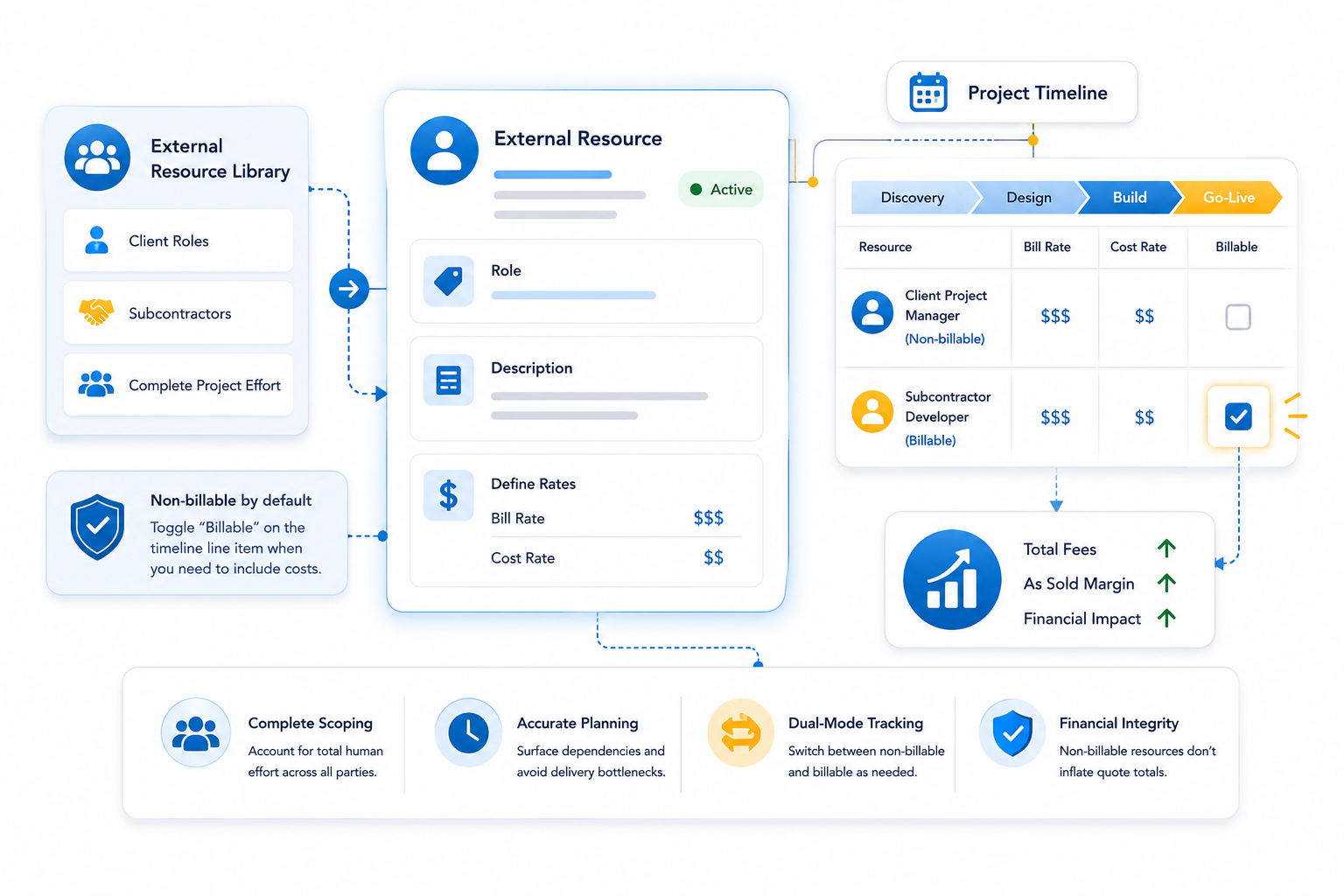
This guide explains how to configure and manage External Resources within the Pre Sales Cloud. Adding external resources to your project timelines allows you to include roles provided by a client or a third-party subcontractor, with the flexibility to treat them as either billable or non-billable.
Overview
In scenarios like Staff Augmentation projects, a client might provide their own Project Managers, Business Analysts, or Release Managers. By creating External Resources, you can allocate their effort across various project phases to maintain a complete view of the project staffing. While these are often non-billable, the system also allows you to define financial rates if you are using subcontractors—such as vendor-managed resources—that need to be billed to the client. This is particularly useful for vendors whom you contract for the customer; while they may not impact your internal direct labor costs, they must be reflected in the project's financial and delivery plan.
Setting Up External Resources
To add an external resource to the system, navigate to the PSC External Resources tab in the Pre Sales Cloud Admin App.
Step-by-Step Instructions:
- Initiate New Record: Click the + New External Resource button from the dropdown menu on the tab.
- Role Name: Enter a clear name for the role.
- Best Practice: Consider prefixing the name with "Client" or "Subcontractor" (e.g., "Client Project Manager") to distinguish it from internal billable roles.
- Description: Provide a concise summary of the role's responsibilities and the context of their involvement (e.g., "Customer-side PMO lead for Staff Augment project").
- Status Selection: Choose the appropriate status from the dropdown:
- Draft: The role is being defined and is not yet available for use.
- Active: The role is available to be added to project timelines. Note: Only Active resources can be used in the scoping tool.
- Archive: The role is no longer in use but is preserved for historical record.
- Save: Click Save to add the resource to your library.
Financial Flexibility & Scoping
External resources offer unique flexibility depending on the contract type:
- Defining Rates: Even for external resources, you can define specific Bill Rates and Cost Rates .
- The "Billable" Toggle: When an external resource is added as a line item in the timeline, it is non-billable by default. However, you can make them billable by checking the Billable box on the specific line item.
- Financial Impact: Once the "Billable" box is checked, the defined bill rates will contribute to the "Total Fees" and impact the "As Sold Margin" (ASM) calculations, just like an internal resource.
Practical Benefits
- Complete Scoping: Allows architects to account for the total human effort required for a project, regardless of who provides the resource.
- Accurate Resource Planning: Ensures that dependencies on client-side or subcontractor roles are visible in the timeline, helping to identify potential bottlenecks.
- Dual-Mode Tracking: Easily switch between non-billable tracking (for client-provided roles) and billable tracking (for subcontractors) using a single resource type.
- Financial Integrity: When left as non-billable, these resources do not inflate the quote totals, ensuring that the financial summary remains focused on your organization's revenue.
Next Step: Setup Other Costs