Preview the configured survey
Step 1: Access the Preview Option
- Click the Preview button located in the top-right menu bar.
Step 2: Navigate the Standard Survey Preview
Once the preview screen launches, you will see the Start Screen.
- Click Get Started to begin the walkthrough.
- NPS Question: View your Net Promoter Score question and select a rating (0-10) to see how it records.
- Conditional Questions: Test the logic of your survey. Some questions will only appear if specific answers were selected in previous steps.
- Open-Ended Questions: Practice entering text into optional or required comment boxes to check the character limits and formatting.
Step 3: Review Your Answers
The final screen of the standard preview allows you to:
- Review all responses provided during the preview.
- Ensure the summary screen accurately reflects the participant's journey.
Previewing as a "One-Page Survey"
If you prefer to have all questions displayed on a single scrollable page rather than one by one, follow these steps:
In the survey Details tab, locate the Is One Paper Survey (or "One Page Survey") checkbox.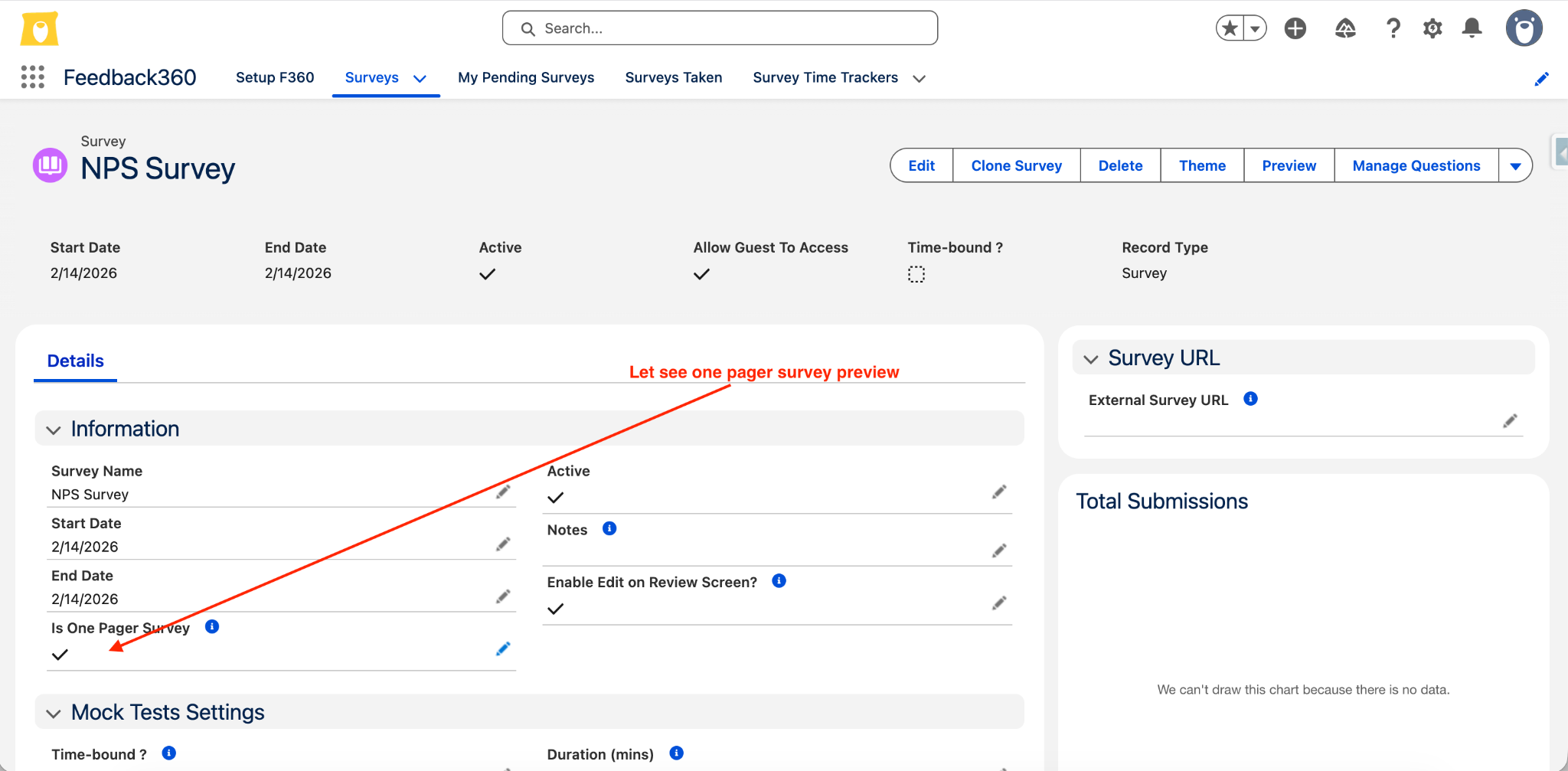
- Ensure this option is checked and saved.
- Click Preview again.
- You will now see all questions (NPS, Conditional, and Open-Ended) on a single screen.
- Fill out the fields to verify that the layout remains clean and professional when all elements are visible at once.
Tips for a Successful Preview
- Check the Logic: Always test different answer combinations to ensure "Conditional Questions" trigger correctly.
- Mobile vs. Desktop: If possible, view the preview on different screen sizes to ensure readability.
- Edit Mode: If you spot a typo, click the X to close the preview and use the Edit button on the survey 'Manage Questions' to make changes.