Setting Up Rate Cards & Pricing
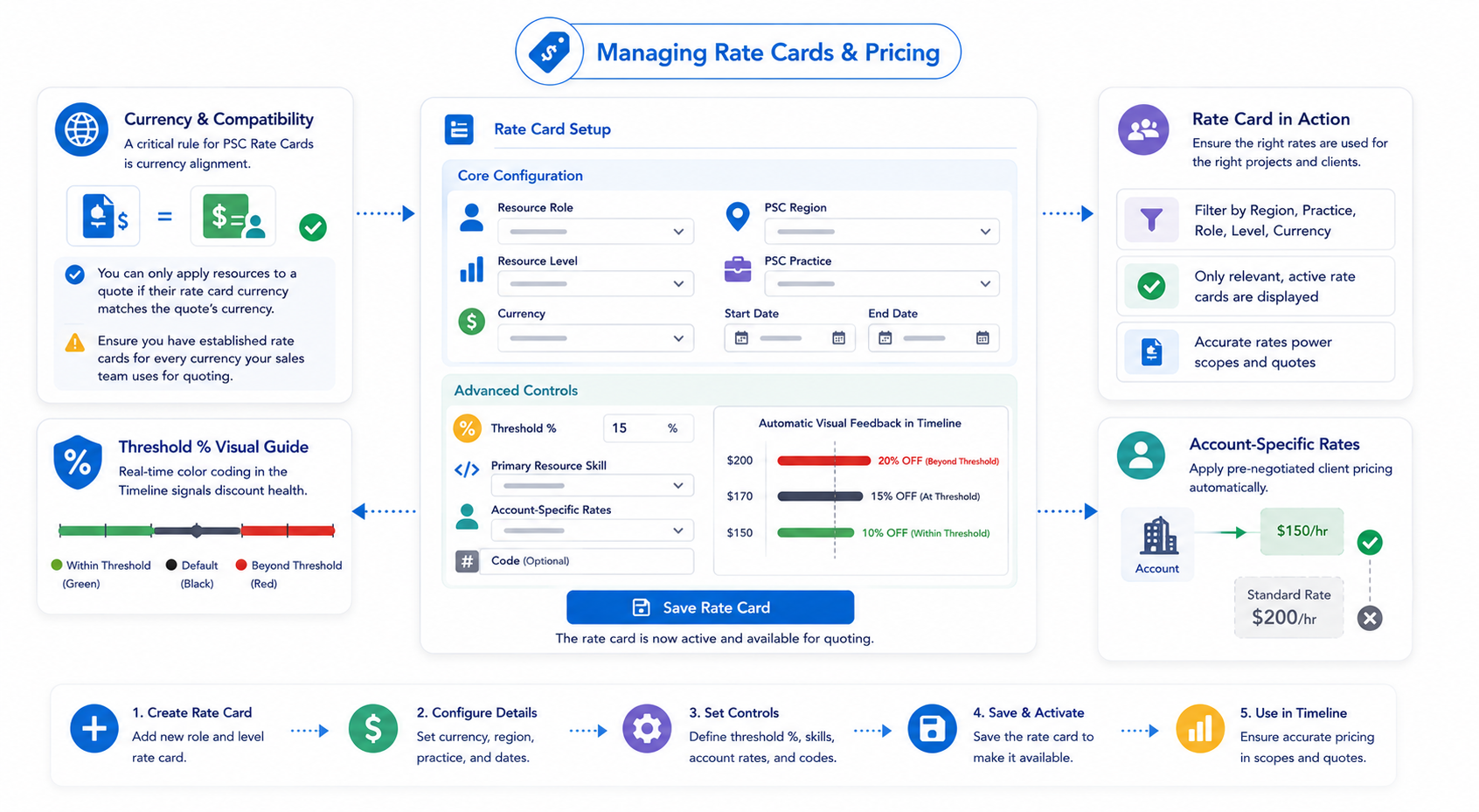
The PSC Rate Cards tab is the financial heart of the Pre Sales Cloud. It is where you define the specific billing and cost rates for every role, level, and region within your organization.
Currency & Compatibility
A critical rule for PSC Rate Cards is currency alignment.
- The Rule: You can only apply resources to a quote if their rate card currency matches the quote's currency.
- Requirement: Ensure you have established rate cards for every currency your sales team uses for quoting.
The PSC Rate Cards tab serves as the platform for uploading rate cards associated with various roles. You can add these rate cards manually or utilize the native import feature in Salesforce. Ensure to specify the currency on the rate card, as it is crucial for applying resources that match the currency of your quote. Compatibility in currency is necessary for accurate resource allocation.
Setting Up Rate Cards
To manually add a new rate card, navigate to the PSC Rate Cards tab and select + New Rate Card .
Core Configuration
- Role & Level: Select the Resource Role (e.g., Developer) and Resource Level (e.g., Principal). These must be created beforehand.
- Currency: Assign the appropriate currency for this specific rate.
- Regional & Practice Assignment: Link the card to a PSC Region and PSC Practice . This ensures that when a user filters for "Salesforce" resources in "India," only the relevant cards appear.
- Effective Dates: Set a Start Date and End Date . A rate card will only be available for allocation if the project timeline falls within this active window.
Advanced Controls
- Threshold %: This defines the maximum discount allowed for a customer on this specific resource.
- Visual Feedback: In the PSC Timeline, if a user discounts a rate beyond this percentage, the rate turns Red . If it is within the threshold, it turns Green . The default color is black.
- Primary Resource Skill: You can link a specific PSC Skill (e.g., Javascript) to indicate specialized competencies for that specific rate card.
- Account-Specific Rates: If you have pre-negotiated rates for a specific customer, assign their Salesforce Account to the rate card. This ensures the correct pricing is used automatically for that client.
- Code (Optional): Use this field for unique internal reporting or accounting codes.
Saving and Deployment
Once all fields are populated, click Save . The rate card is now part of your organization's library and available for use in the scoping timeline.
Next Step: Setup External Resources